One of the biggest benefits of ebooks is that it’s easy to grab passages of text and make them available for further reference.
[ef-archive number=2 tag=”lists” ]
With only a bit more effort you can store your favorite passages from print books, as well. You don’t need to download any advanced application or sign up to another service.
All you have to do is to use a phone to take photos of favorite passages while you read the book. Then, you can use Google Keep app to do the magic for you.
Google Keep is a note-taking solution available for free for every user of Google services, such as Gmail or YouTube.
You can access Google Keep from your browser on a computer, but also via free mobile applications for iOS (iPhone and iPad), as well as Android.
One of the best features of Google Keep – essential in our case – is OCR, which stands for optical character recognition.
OCR is a technology that lets transform texts from images into a fully editable and searchable digital text. Thanks to that you don’t need to type manually the passages of text you want to keep for the future.
It can be particularly helpful when:
- you want to save favorite quotes but don’t want to sacrifice the pleasure of reading paper books,
- you study print books in a library, and don’t want (don’t have time) to make notes,
- a digital version of a textbook is not available.
How to collect and digitize quotes from print books using Google Keep
Grabbing text with Google Keep is pretty easy. Let’s go through it and I’ll share a couple of tips.
1. Take a photo of a text

There are two ways to do it:
- you can use a phone’s built-in camera app, and then use a share menu to export images to Google Keep in bulk,
- you can take a photo directly in Google Keep app, by picking a camera icon and making a photo note.
When you make a picture, you’ll obviously grab much more text than what you need. The easiest way to limit the number of lines is to position the phone horizontally and make a landscape photo. Below there is a photo opened in Google Keep app for iOS.

I prefer shooting photos directly in Google Keep rather than by default camera. It’s the way to immediately manage the quote by tagging it.
Tagging is good if you want to collect book quotes in the same directory. For instance, it could be a general label such as “quotes,” but you can also use a tag specific for the single book you make notes from.
To tag a photo note in Google Keep, tap the dots icon in the bottom right corner, pick up Labels, and choose the relevant tag.

2. Digitize the text with Google Keep
Google Keep app for Android has the OCR feature, but the version for iOS does not. Anyway, I don’t think you’ll need to immediately turn the text to a digital version while reading a print book.
Once you store the picture on Google Keep, it will be accessible from the web as well, and it’s where you can also grab the text.
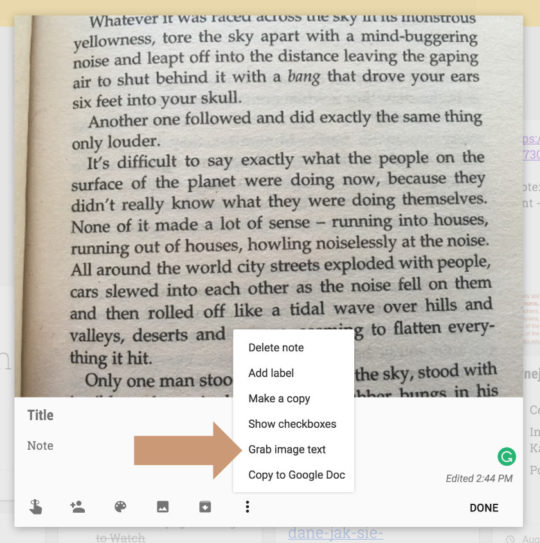
To do that, open Google Keep in a browser, find the note, open it, click on a “More Options” icon, and select the line saying “Grab image text,” as shown below.
After a moment the machine-encoded text appears under the photo.

I wanted to grab the following text (copied directly from Google Keep, so that you can see how accurate the app is):
It’s difficult to say exactly what the people on the surface of the planet were doing now, because they didn’t really know what they were doing themselves.
• • •
Obviously, you can use Google Keep to manage any printed text, for instance:
- collect passages from newspapers and magazines,
- collect passages from digital books in which the option to highlight and manage text passages is not available,
- grab text from image files such as jpg or png,
- make business cards ready to add to contacts application,
- digitize and organize printed correspondence for further reference,
- grab text from bulletin boards, billboards, signs, etc.
- make digital and searchable versions of printed instructions, guides, recipes, etc.
To get more posts like this, please subscribe by RSS or email. Let’s also connect on Facebook, Twitter, and Pinterest.
The text was grabbed from The Hitchhiker’s Guide to the Galaxy: The Trilogy of Four by Douglas Adams, Picador, 2002.
Recently on Ebook Friendly:
[ef-archive number=5 tag=”lists”]